READY TAP GO · THE DETAILS
How to Get & Test Your Google Review Link
Get the destination right before printing.
Find your Google Business Profile review link, test the correct business and prepare it for a custom NFC and QR review sign. Includes official Google guidance.
Create your sign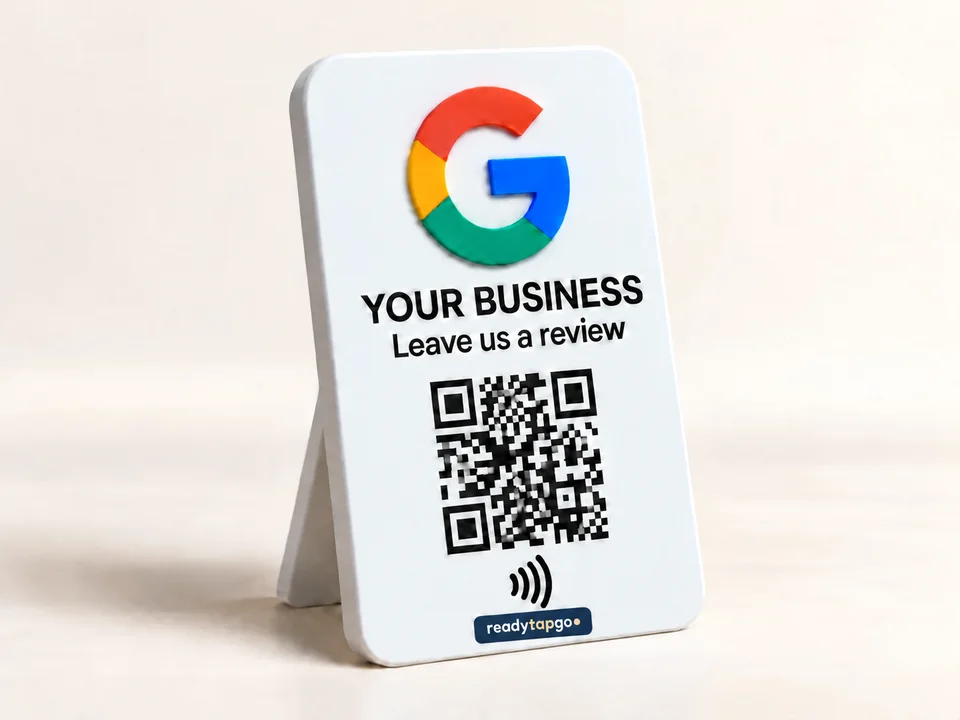
Start with the business profile you manage.
Use the Google account that manages the correct Business Profile. If you manage several locations, confirm the business name and address before copying a link. A customer-facing review invitation should point to the intended location, not a different branch or a general search result.
Get the review link from Google.
On a computer, open your Business Profile, choose “Read Reviews,” then “Get more reviews,” and copy the supplied link. Google also offers a QR-code download there. Interface labels can change, so use the official instructions linked below if your screen differs.
Test before adding it to a design.
Open the copied link on a phone. Check the displayed business name and location, then confirm it reaches the intended review experience. Try a second browser or phone when possible. Customers need to sign into a Google account to post a review, so a sign-in prompt does not by itself mean your link is wrong.
Keep the invitation neutral.
Ask customers to share honest feedback. For example, “Share your experience” describes the action without asking for a particular rating. Do not offer a discount, gift or reward in exchange for a review, and do not direct only happy customers to a public review page.
Supply the link, rather than a screenshot alone.
Paste the exact review URL into your quote request so its destination can be checked. If you send an existing QR image as part of artwork, include the original link too. A code that looks correct can still contain the wrong address. We confirm final NFC and QR link assignment in the production proof.
Approve, then test the finished sign.
Review the business name, spelling, logo, colors and destination assignment before approving production. Once the sign arrives, scan and tap it at its intended indoor location with representative phones. Keep the code visible and review the mounting surface, especially when a plaque will be close to metal.
Official Google instructions
Google’s review link and QR instructions explain where to copy the destination. Its review guidance explains account requirements and honest feedback. Platform steps reviewed October 7, 2026.
When your link is ready, choose a Google review stand or plaque and submit the exact destination with your artwork.
Questions before you order
Can customers review without a Google account?
Google requires customers to sign into a Google account to post a review.
Should I use our generic Maps link?
Use the review destination supplied for the correct Business Profile, and test the result. A general Maps or search link may not take the customer to the intended review experience.
What if I cannot find the review-link controls?
Confirm that you are signed into the account that manages the correct profile, then consult Google’s current official instructions. Do not send us your account credentials.